Working Groups
This widget allows you to showcase the various groups that have been set up within your organization to support the GIS. You can create and edit workgroups and manage the order in which they are displayed.
Existing Groups
This menu displays a list of all documented workgroups. A search bar (for names) and a pagination system have been implemented. You can edit a workgroup or delete one or more of them as needed.
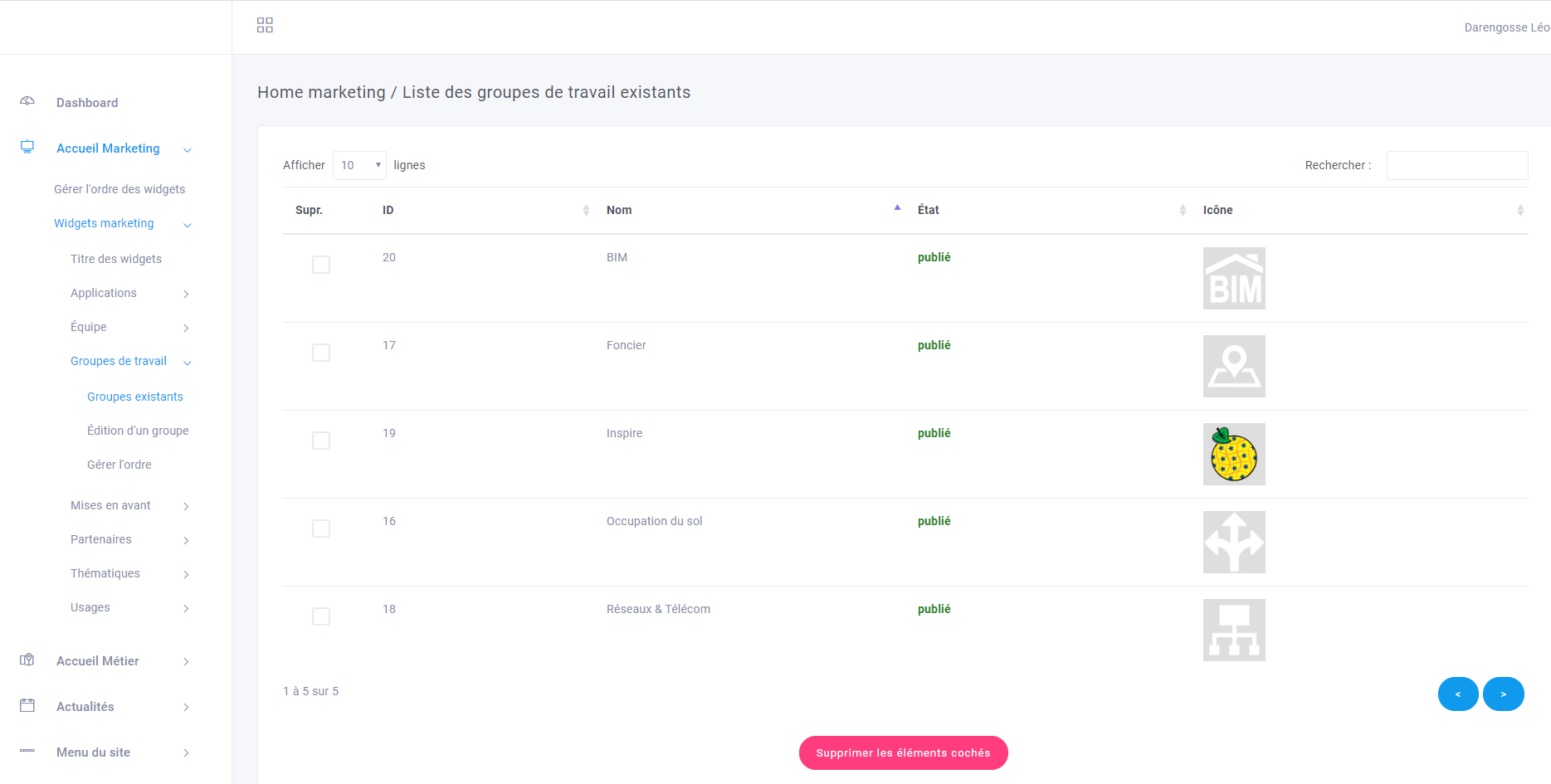
Editing a workgroup
To create a workgroup, simply click " Edit a Group " in the access menu. To edit an existing workgroup, simply select it from the previous menu.
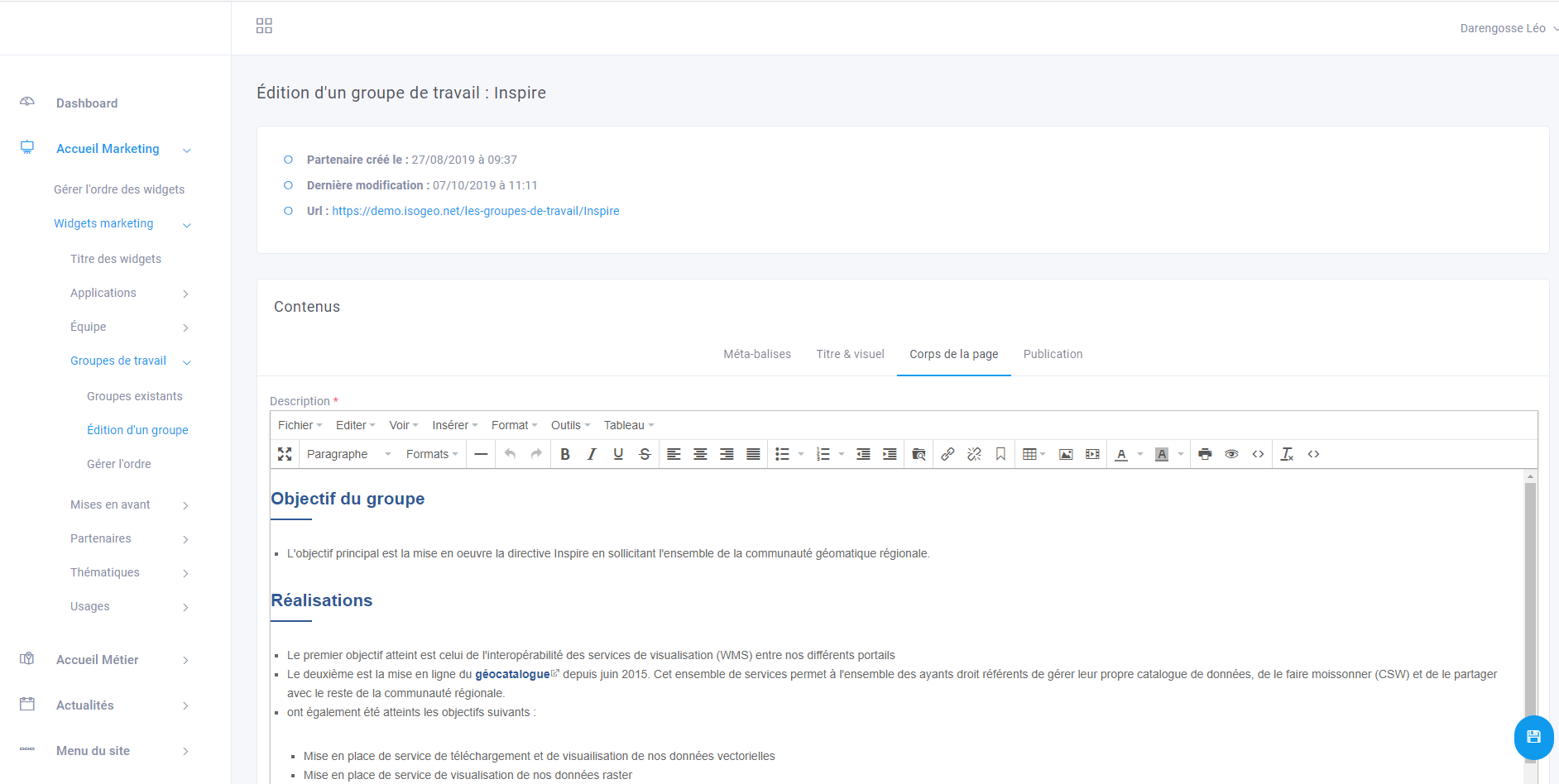
The editing menu for a workgroup therefore has four tabs.
Meta Tags
Meta tags help improve search engine optimization for public portals. Required fields are in bold.
- Title: The "title " field is the one that appears in the browser's title bar or tab.
- Keywords: Keywords must be separated by commas.
- Description: The " Description " field is the one that appears on search engine results pages.
Title & Image
This tab lets you manage the workgroup title and image in the Workgroup widget on the home page.
- Icon: Insert an image using the portal's built-in file manager.
- Example: Working Group Logo
- Title: Name of the Working Group
- Example: Inspire
Page Body
The page body allows you to write the content of the page introducing the working group using the built-in WYSIWYG editor.
Publication
This tab allows you to manage the workgroup's publication.
- This document is a draft. : Otherwise, the workgroup is published on the portal and accessible to authorized groups.
- Authorized Groups: Select the user groups authorized to view the workgroup.
Manage the Order
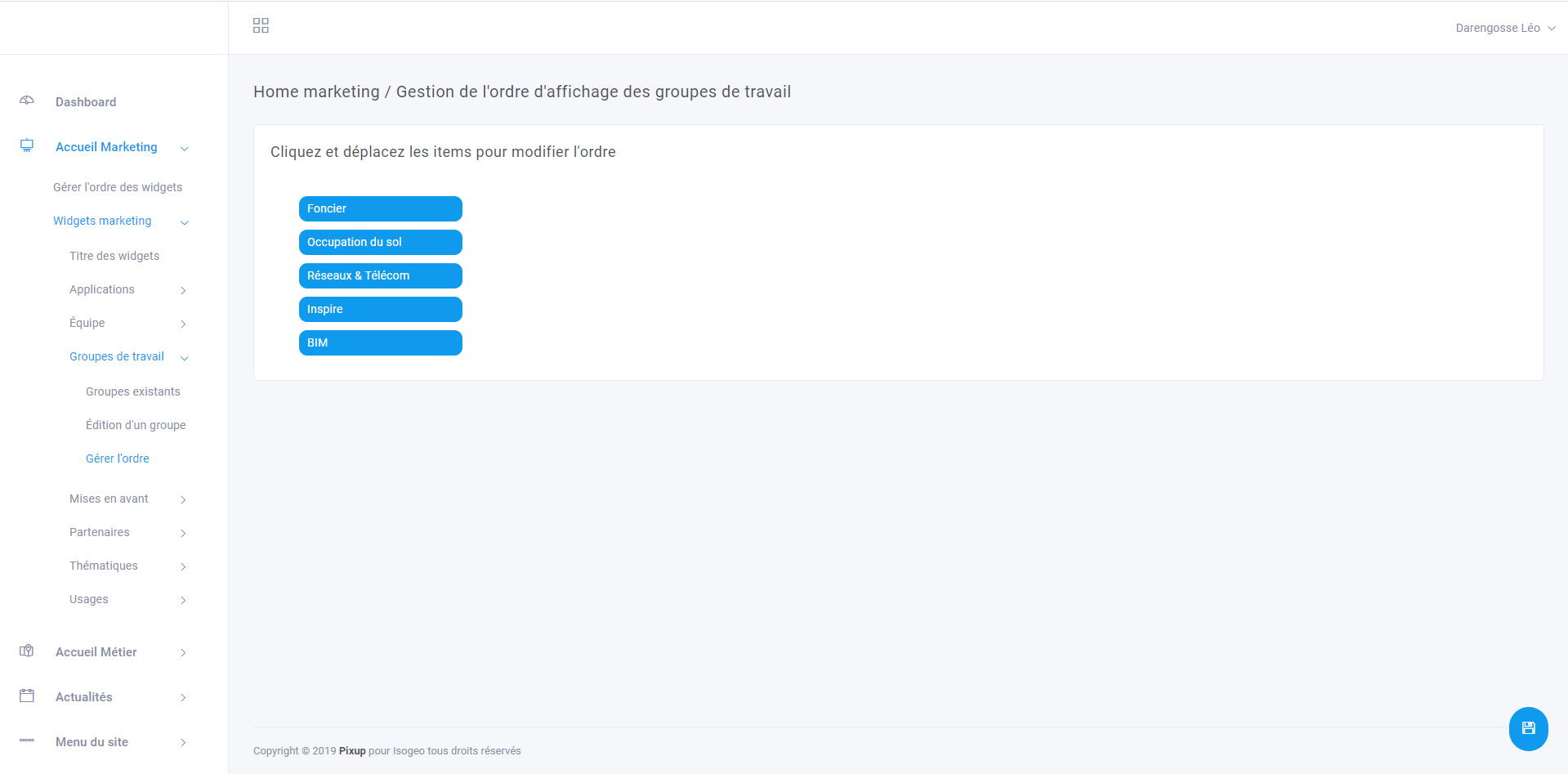
This menu lets you easily change the order in which the workgroups are displayed. In fact, all you have to do is select a workgroup and drag and drop it before or after the others. Don't forget to save your changes using the button at the bottom right of the page.
Note
Only published workgroups are displayed in this menu.
Results from the front office
Widget on the home page

Working Group Overview Page