General Settings
This section contains the site's general settings. All settings marked with a red asterisk * are required.
Access to the site
Network Access
This setting allows you to disable CAPTCHAs when the portal is installed on a machine that is not connected to the Internet.
Certificate Access
This setting allows you to specify the path to the certificate when the portal uses the Isogeo API in on-premises mode.

Note
Leave the " Remote Certificate " option selected when using the Isogeo API in SaaS mode.
Maintenance
Possible values:
- The geoportal is accessible
- The geoportal is currently undergoing maintenance
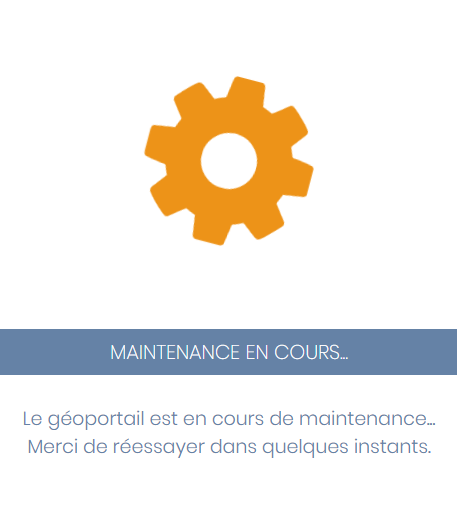
It is therefore possible to notify users of portal maintenance. In this case, the portal displays the image below.
Extractor
This setting enables the Portal's shopping cart and data extractor. You must first share the same data with both applications in the administration interface (see " Sharing").
If enabled, you must specify the URL of the extractor; the default is: https://extractor.isogeo.com/portal/cart
Authentication
Possible values:
- Access to the geoportal is free
- Authentication is required to access the geoportal
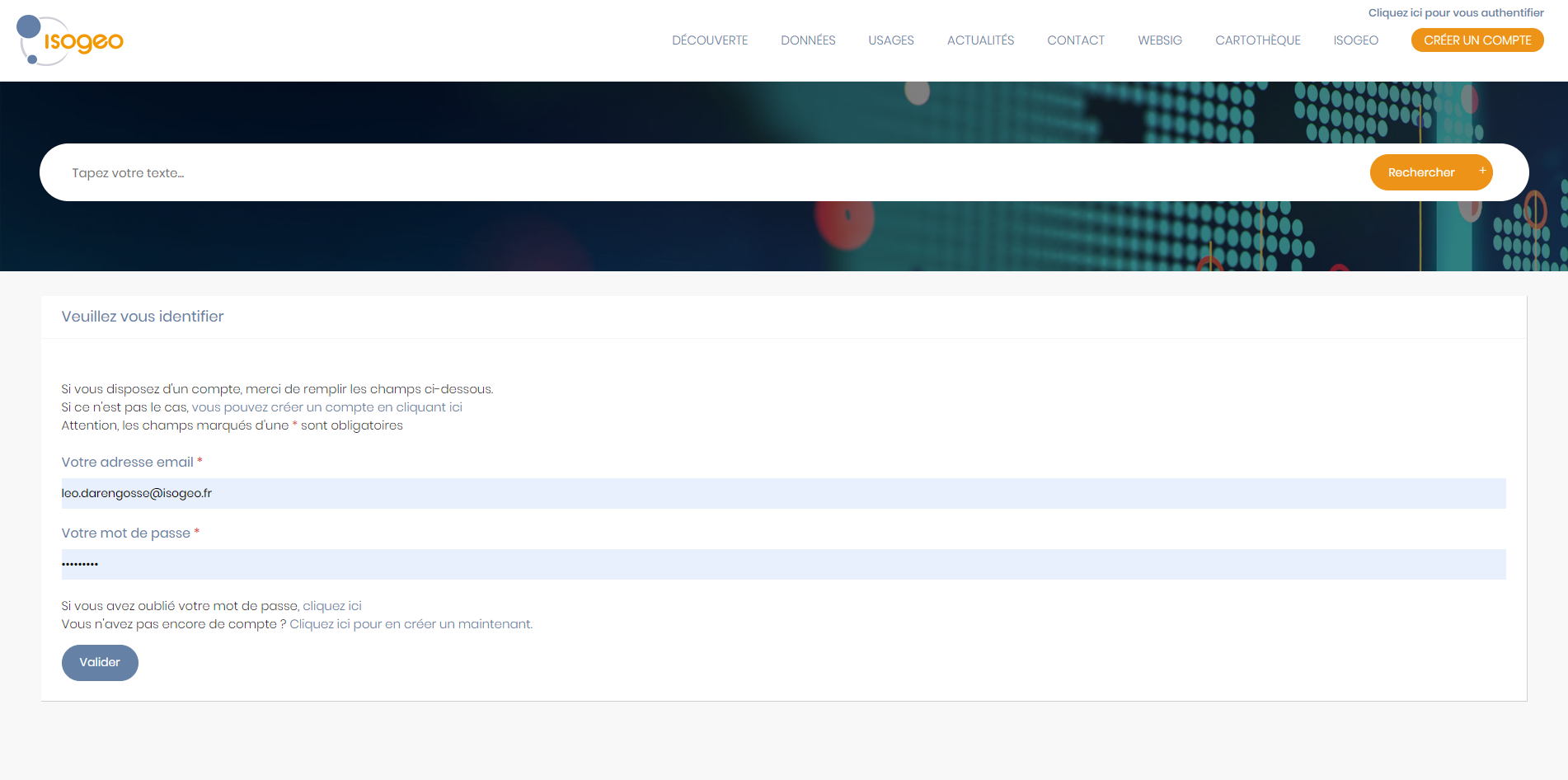
It is therefore possible to require users to log in to the portal in order to access its content. This serves as a security measure for portals that do not wish to be open to the public, for example.
Authentication Type
This setting allows you to delegate user creation and authentication to a SaaS identity manager such as EntraID (see " Configuring the EntraID Application"), Okta, or LemonLDAP by specifying the parameters provided by the corresponding tool.
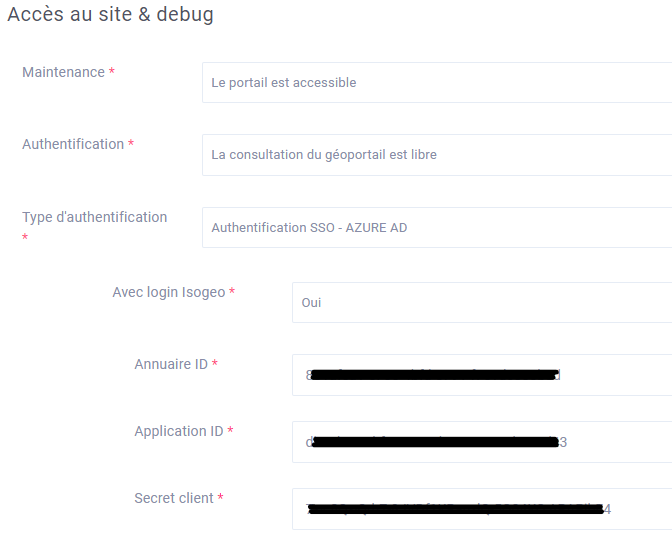
If authentication is delegated, you can also manage the addition of new users to the correct permissions group by specifying the alias of the corresponding group in the group settings.
Note
You can retain the option to authenticate using the portal's native user manager by selecting " Yes " for the " With Isogeo login" setting.
On the Front end, you can then log in directly using your chosen SSO. 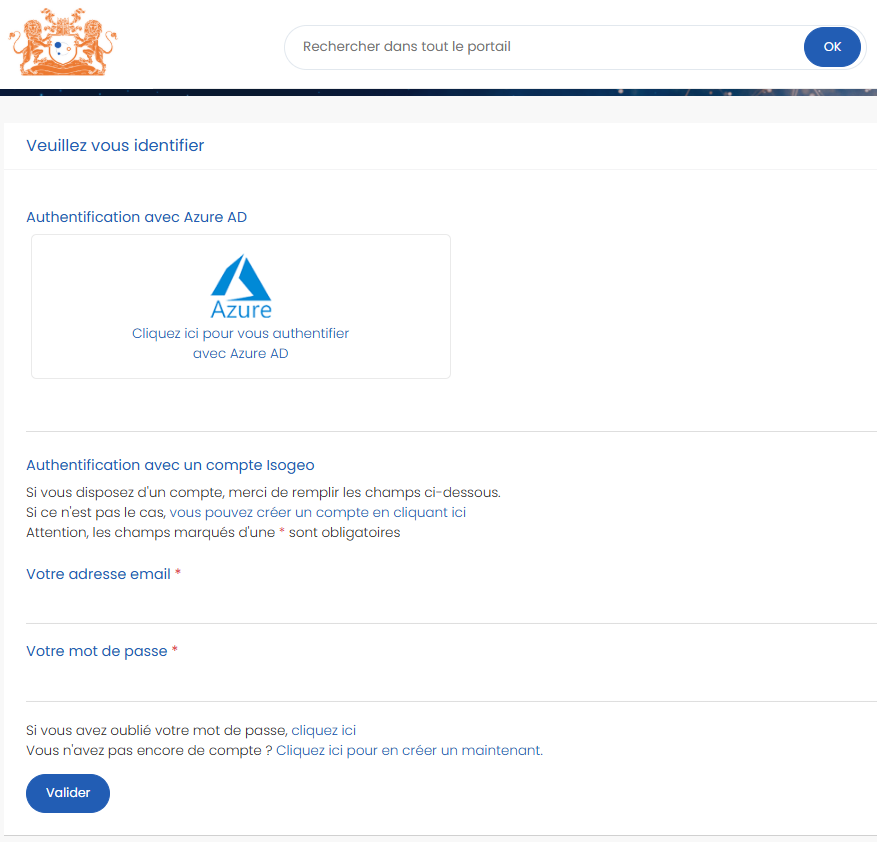
Create an Account
This setting allows you to choose whether users can request to create an account or whether only administrators can do so.
Website Name
The name of the selected site appears in the title of your browser tab.
Debug
This option is reserved for the Isogeo team and allows debug messages to be displayed on the portal.
Sending an email
This option disables email sending and hides the configuration menus for sending/receiving email and the email server being used.
IP Restriction
This configuration menu allows you to grant access to the portal to a list of selected IP addresses. Simply enter the IP addresses one below the other, separated by a line break.
Note
This restriction applies only to the front end. The admin interface is still accessible with authentication at https://nomportail.domain.ext/admin. This can be very useful in case of an IP entry error...
Multilingualism
This menu allows you to enable automatic translation of the Portal pages using the Linguise tool. To do this, you must retrieve the API key and the associated variable fromthe Linguiseadministration interface.
API
Warning
Please note that these settings are reserved for the Isogeo team.
These are all the settings related to the Isogeo APIs.
- Isogeo Consumer Key: Authentication ID for the Isogeo API
- Isogeo Consumer Secret: Authentication Key for the Isogeo API
- Isogeo OAuth URL: Isogeo API URL (default: https://id.api.isogeo.com/oauth/token)
- Isogeo APP URL: URL of the Isogeo application (default: http://app.isogeo.com)
- Isogeo API Protocol: URL of the Isogeo API protocol (default: https://v1.api.isogeo.com)
- Isogeo Url GeoDataProcess: URL of the Isogeo Geodataprocess API used to access geographic services (default: https://geodataprocess.api.isogeo.com)
- XML Export: Enable XML export of metadata records (disable if using a multilingual group)
External Resources
Warning
These settings are reserved for the Isogeo team.
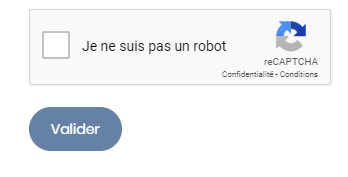
These are the client and server keys that enable the use of Google Captcha (see screenshot below) in all forms on the site, namely:
- Account Creation Form
- Contact Form
- Form on the "Discussion" tab of a metadata record for unauthenticated users
Info
For your information, you can get these keys from Google for free at this address.
Social Media
You can enter links to your organization's social media accounts. These links will then appear in the website's footer.

Email accounts used for sending and receiving
This menu pertains to messages sent by users via the contact form in the website's " Contact" menu (see screenshot below).
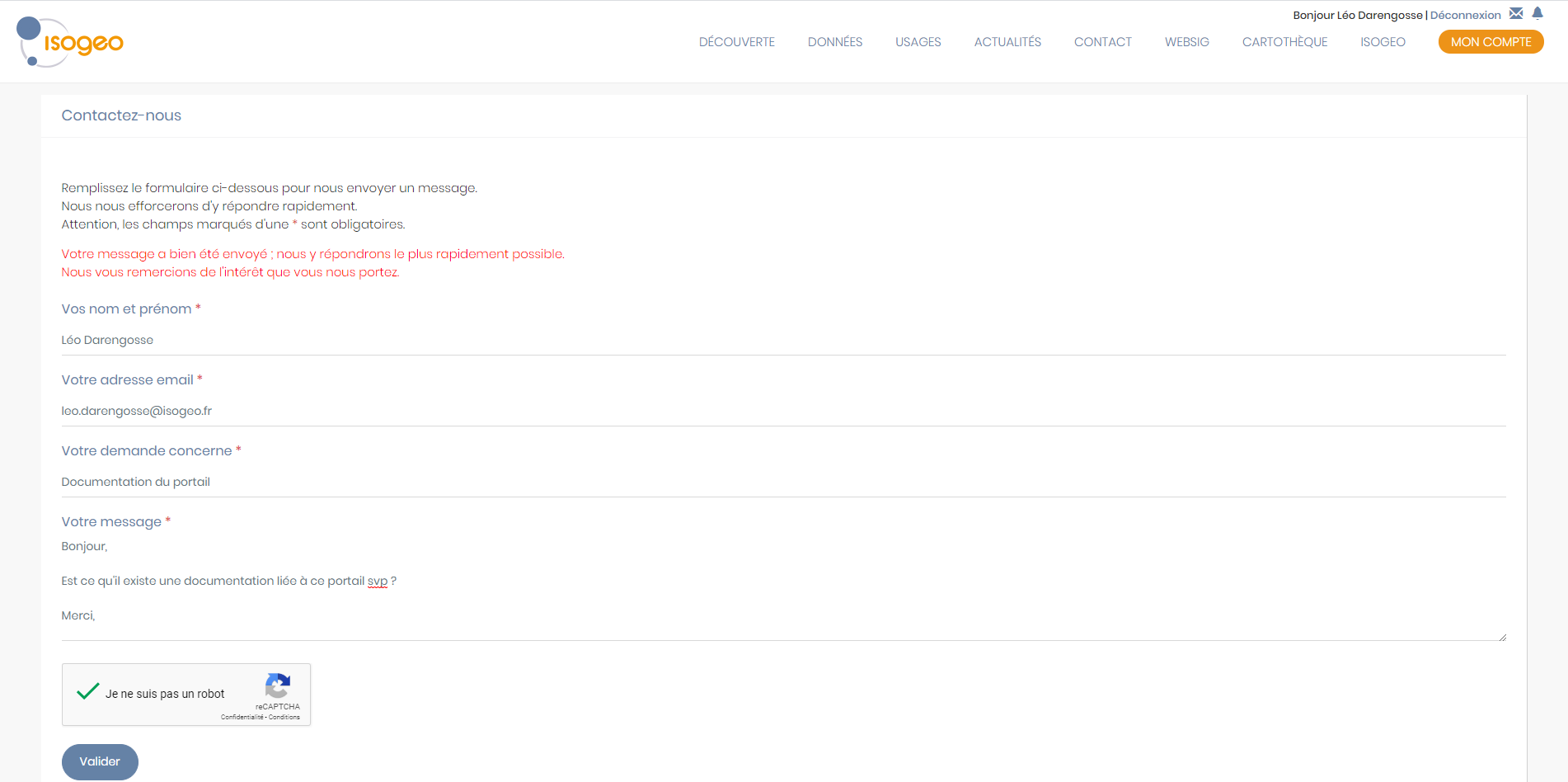
Administrators receive an email notification based on how these settings are configured.
- Notification email address: the email address where notifications will be sent (required)
- Notification Email Address 2: Email address for receiving notifications (optional)
- Notification Email Address 3: Email address for receiving notifications (optional)
- Sender's email address:
ne-pas-repondre@isogeo.com(default) - Sender Name:
Geoportail Isogeo(default)
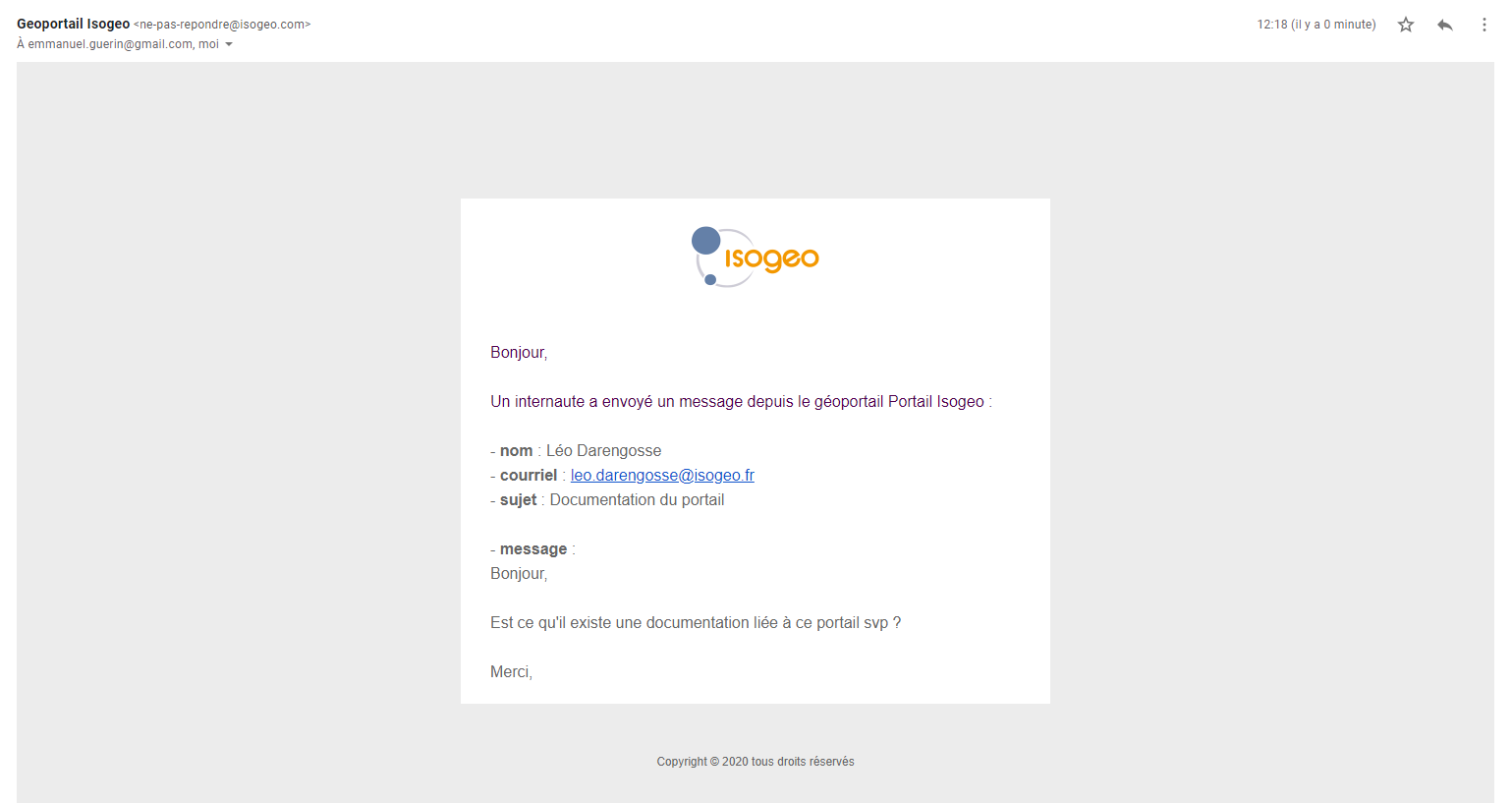
Here is what the email notification looks like with the default settings.
Email Server
You can use your own mail server to send the notifications listed above. This is very useful for bypassing the multiple IT security measures in place within your organization.
You must therefore fill in the following fields:
- Host
- Port
- Username
- Password: The password will no longer be displayed once it has been saved. Therefore, leave it blank if you are not changing it.
- Secure SMTP
Note
Please feel free to contact Isogeo Support (support@isogeo.fr) if you encounter any problems configuring the mail server.
JavaScript and CSS
If your portal is accessible via a public URL, you can enter the traffic tracking code from Google, Matomo, or another tool into this form.
You can also insert CSS or JavaScript code tags (for advanced users only).